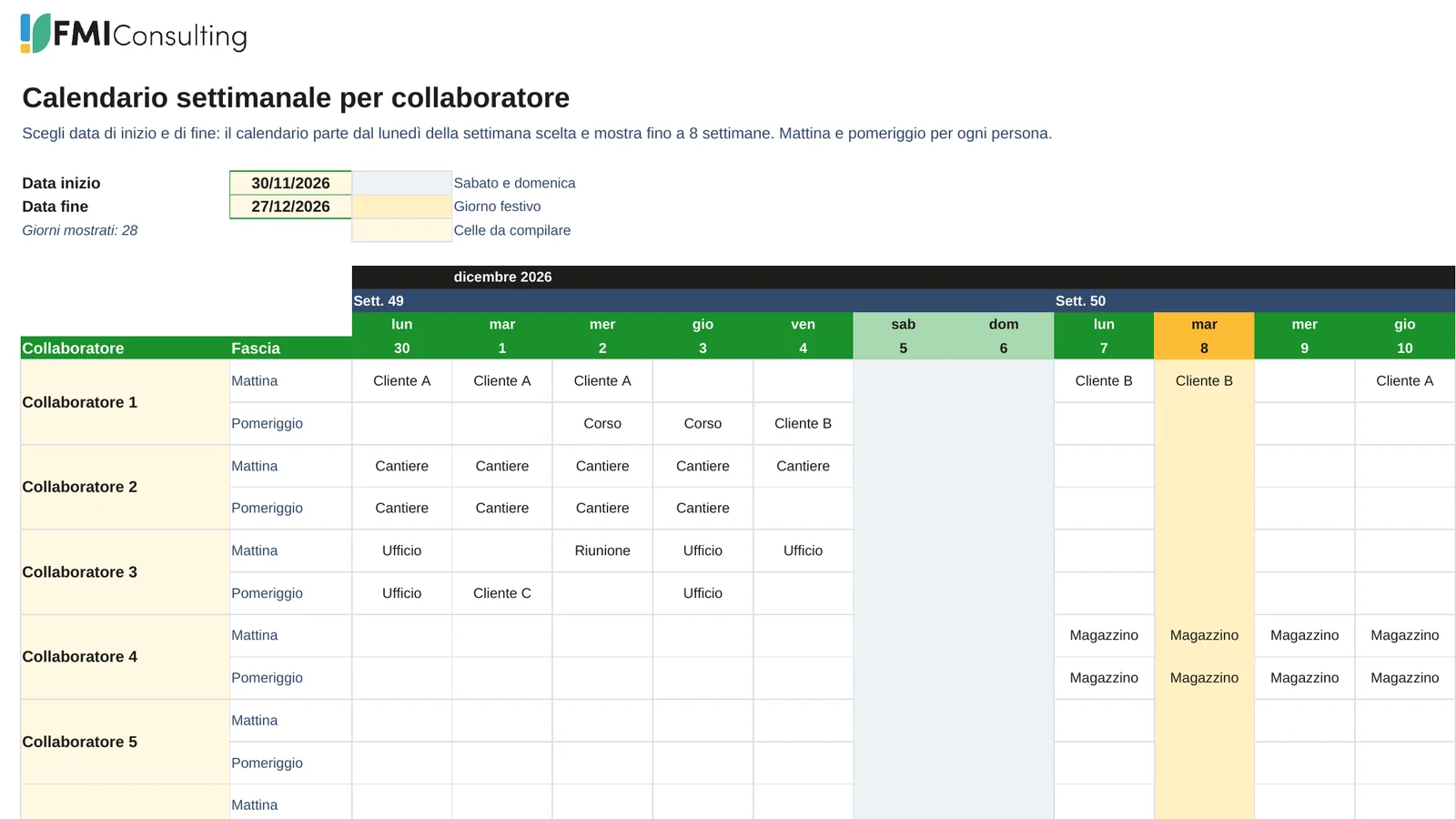
 Weekly calendar
 for up to 10 people
A week-by-week plan with a morning and an afternoon slot for each person. Choose the dates: the calendar starts on Monday, shows the week numbers and shades weekends and public holidays.

Ready-made calendars, holiday plan, work shifts and project Gantt
Five Excel files to plan a team of up to 10 people. Choose a start date and an end date and the calendar builds itself, with weekends and public holidays shaded. Download, fill in and use.
Pick the plan you need. Every file is free, has an instruction sheet and an example to start from.
Weekly calendar
A week-by-week plan with a morning and an afternoon slot for each person. Choose the dates: the calendar starts on Monday, shows the week numbers and shades weekends and public holidays.
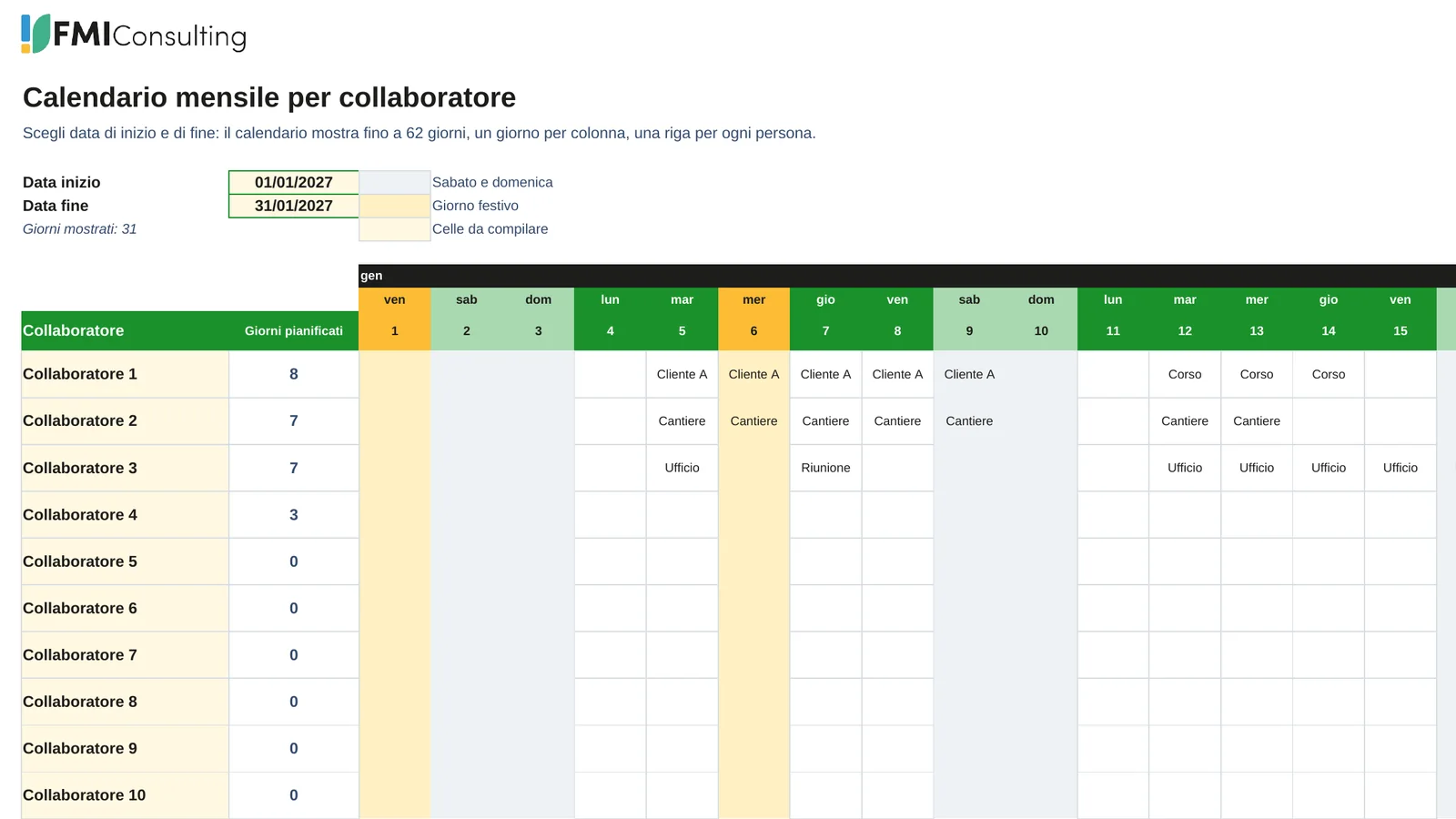 Monthly calendar
One row for each person and one column for each day. Write the client, the job or a short code in the day cell and see how many days each person is planned.
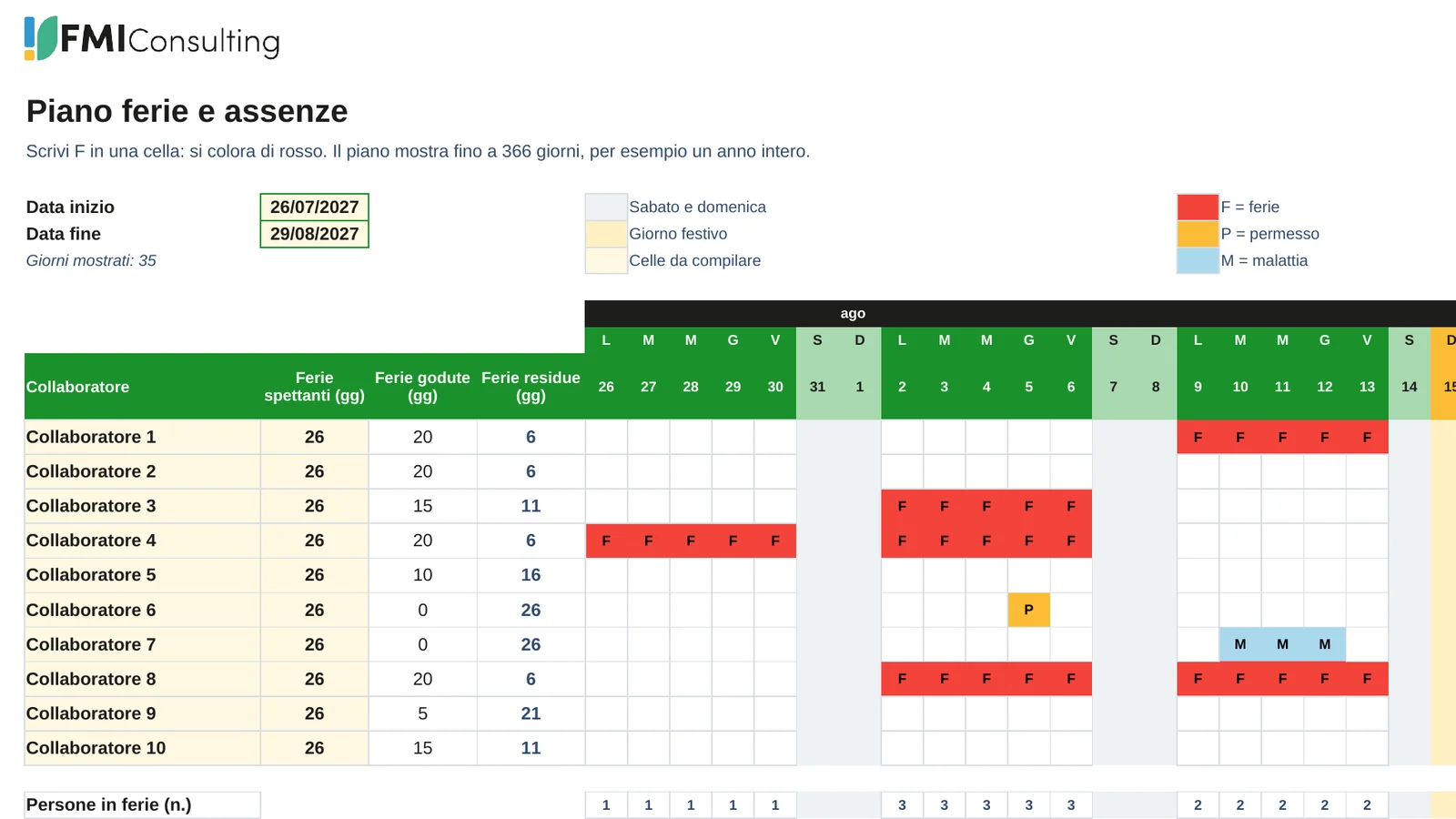 Holiday plan
Type F in a cell and it turns red, with the text staying black. P marks a leave and M an illness. Holidays taken and left are counted for each person, and a row shows how many people are away each day.
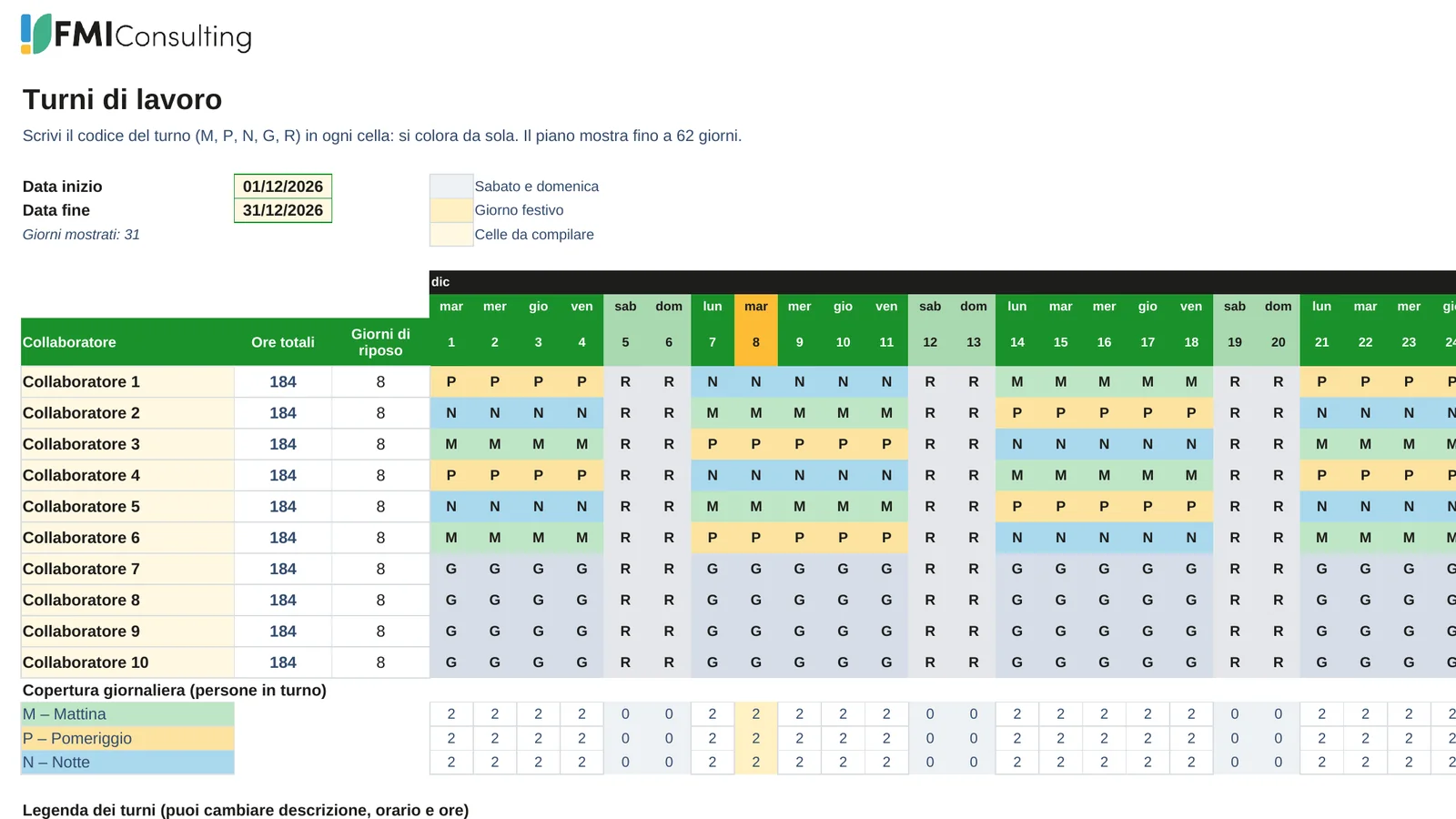 Work shifts
Morning, afternoon, night, day and rest shifts in one colour-coded grid. Total hours for each person and the daily coverage of every shift are calculated under the grid.
 Project plan
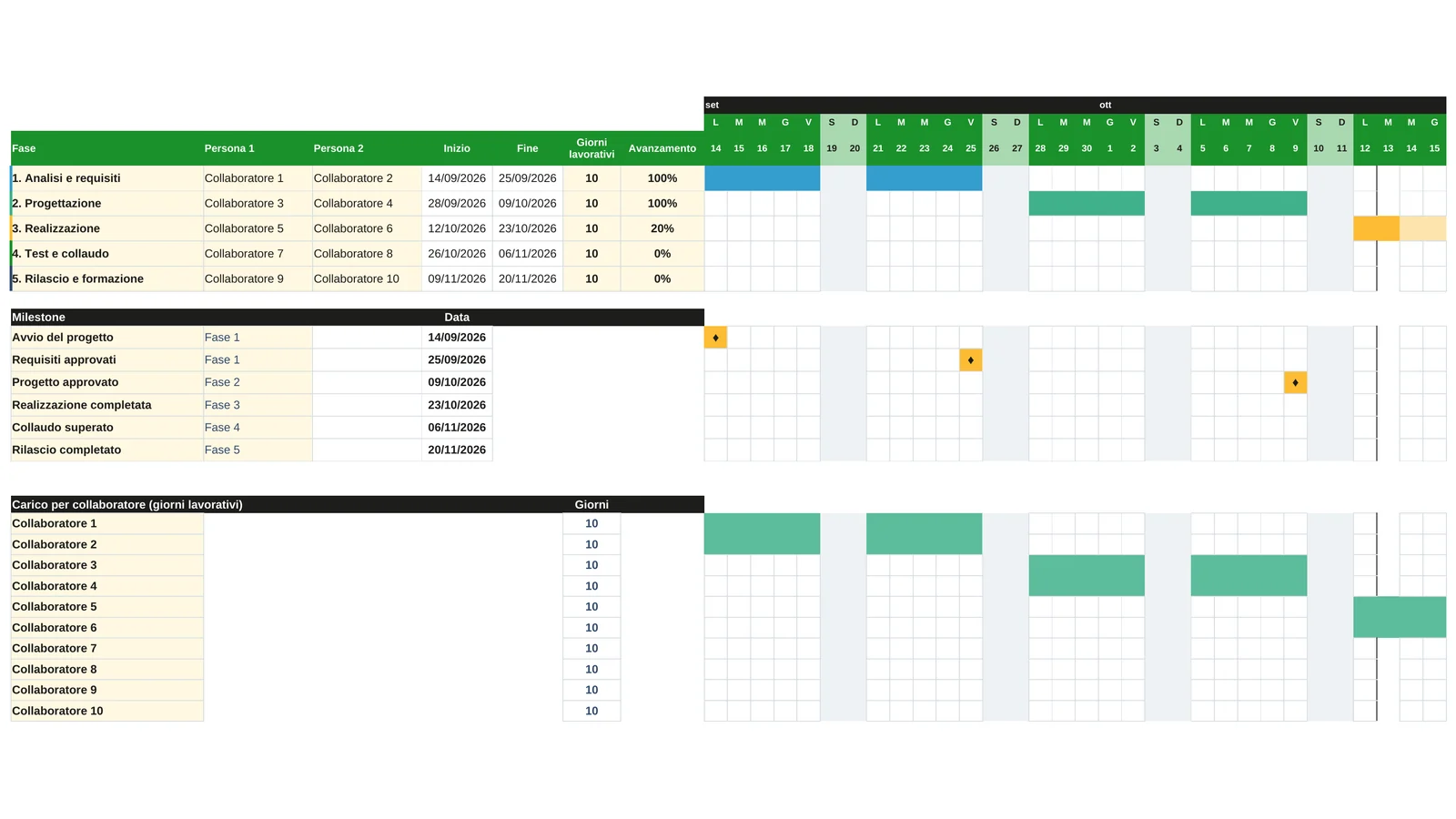
Dates across the top and phases down the side, with the people involved, progress and milestones. The example is a project of 5 phases of 10 working days, with 2 people on each phase.
 Worked example
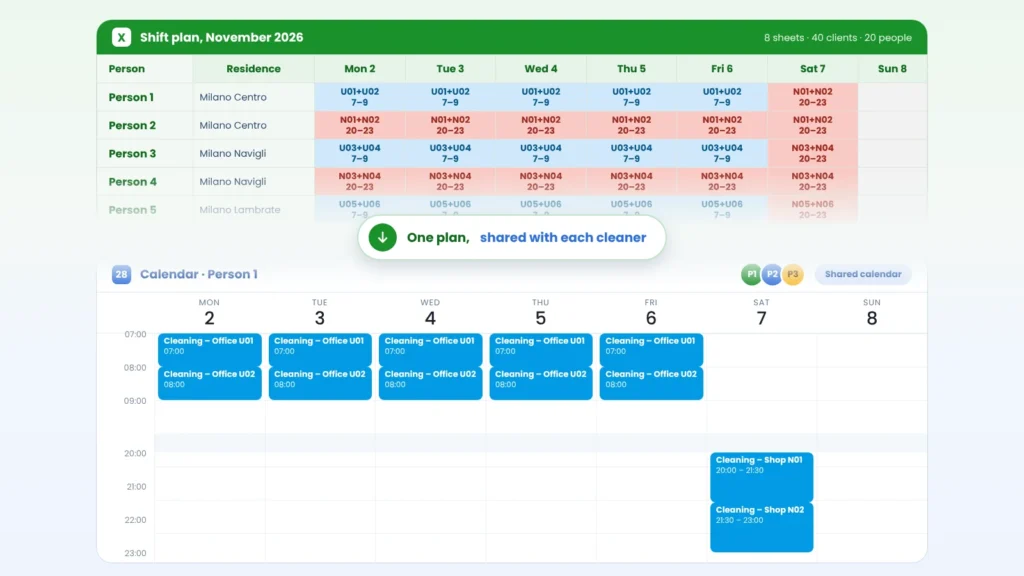
A full month of shifts with costs, hours and a printout for each person, built with an AI assistant. Not a template: an example to study and adapt, with invented clients and addresses.
 Timesheet report
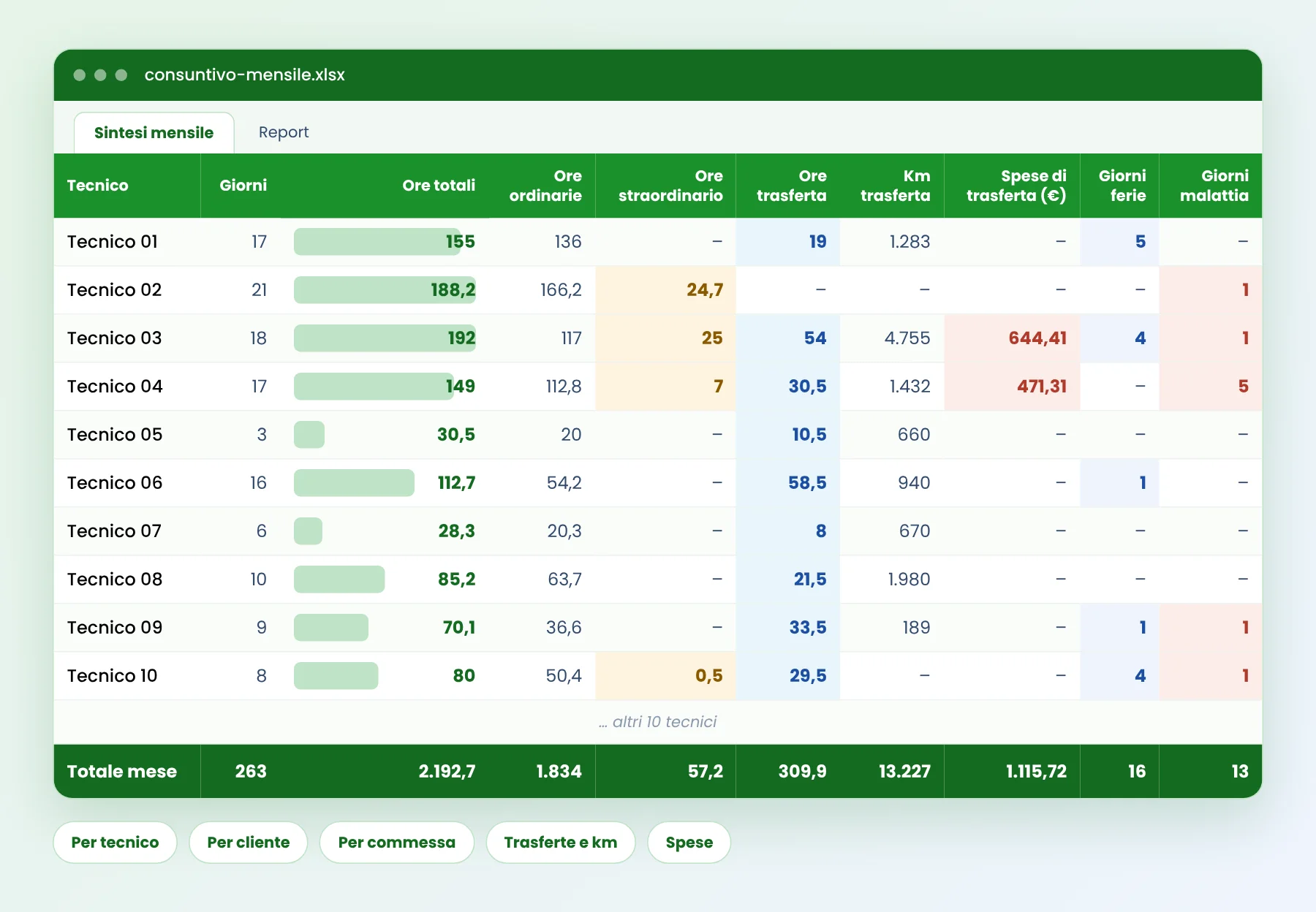
A real month of hours, travel, kilometres and expenses by technician, client and job order, produced automatically by PlanningConnect. Not a template: an example of what you can get without re-typing.
 Only for Web Access customers
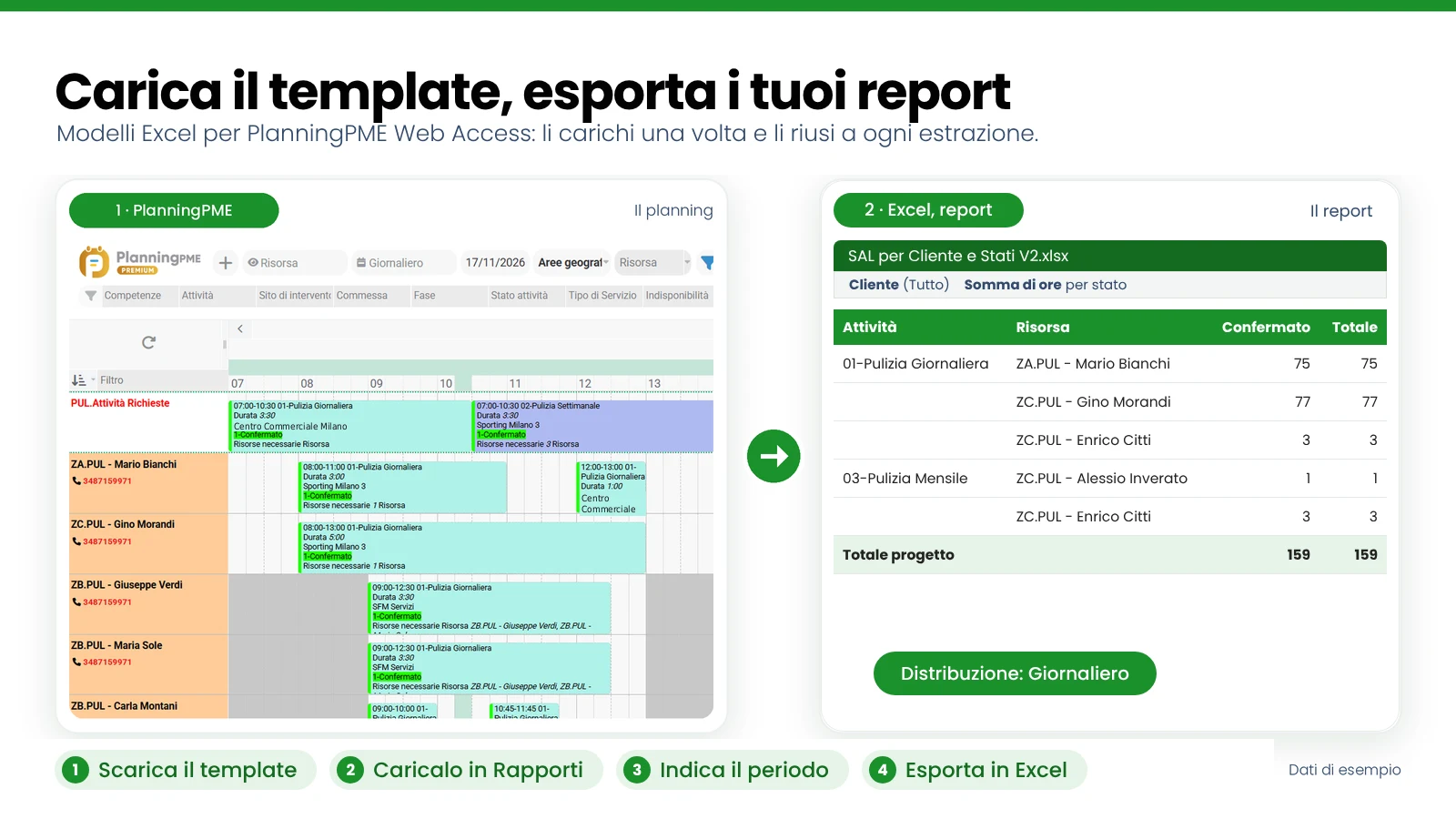
Not a spreadsheet to fill in: four report templates to load in PlanningPME Web Access and reuse at every extraction, with activity progress, staff absences and activity detail.
A file is a good start for one person or a small team. When many people have to work on the same plan, a shared calendar saves time and avoids duplicated versions.
Three steps from download to a plan you can share or print.
Choose the template that fits your plan and open the .xlsx file in Excel.
Write the start and the end date in the two highlighted cells and replace Collaboratore 1–10 with the names of your team.
Write activities, codes or the letter F for holidays. Weekends and public holidays are shaded by the template, and totals update by themselves.
The same logic and the same look in all five files, so you can use them together.
The days of the calendar come from your start and end dates. The same file works for any month, quarter or year, up to the length each template shows.
Saturdays and Sundays have a soft grey background and holidays a soft yellow one. Italian national holidays, Easter included, are calculated for you; you can add your own closures.
Ten rows named Collaboratore 1 to 10, ready to be renamed. Totals, such as days planned, holidays left or hours worked, are formulas that update as you type.
Each file has an instruction sheet with the colour legend and an example in the first rows that shows how it works. Delete the example and start with your data.
These templates are made for what Excel does well: one person or a small team, a plan that lives in a single file and is updated by one person at a time. They are free and you can start in a few minutes.
When several people have to update the same plan, when absences and overlaps must be checked for you, or when the plan has to follow the job from the office to the field, a shared schedule saves time. FMI Consulting is the Approved Reseller of PlanningPME for Italy: PlanningPME is a shared calendar for people, machines and vehicles, and PlanningConnect adds automations, analysis and the connection to your ERP.
Where a spreadsheet is enough, where it stops, and how PlanningPME compares on sharing, absences, conflicts and skills.
Plan the sequence first and name the people later, and see how PlanningPME sits next to your project tool.
See how companies in industrial assembly, cleaning, installation and maintenance and event production plan their teams.
Short answers about the files, the calendar and the holidays.