The project
At the top, the project and its activities along the calendar. Each bar shows its duration, its status and how many resources it needs.

Check resource availability while you plan, not after
A project or a customer job is rarely one block of work. It has phases, activities, deadlines and people who also work on other things. In PlanningPME you build the project by phases and activities and check who is available as you assign each one, so conflicts show up before they become delays.
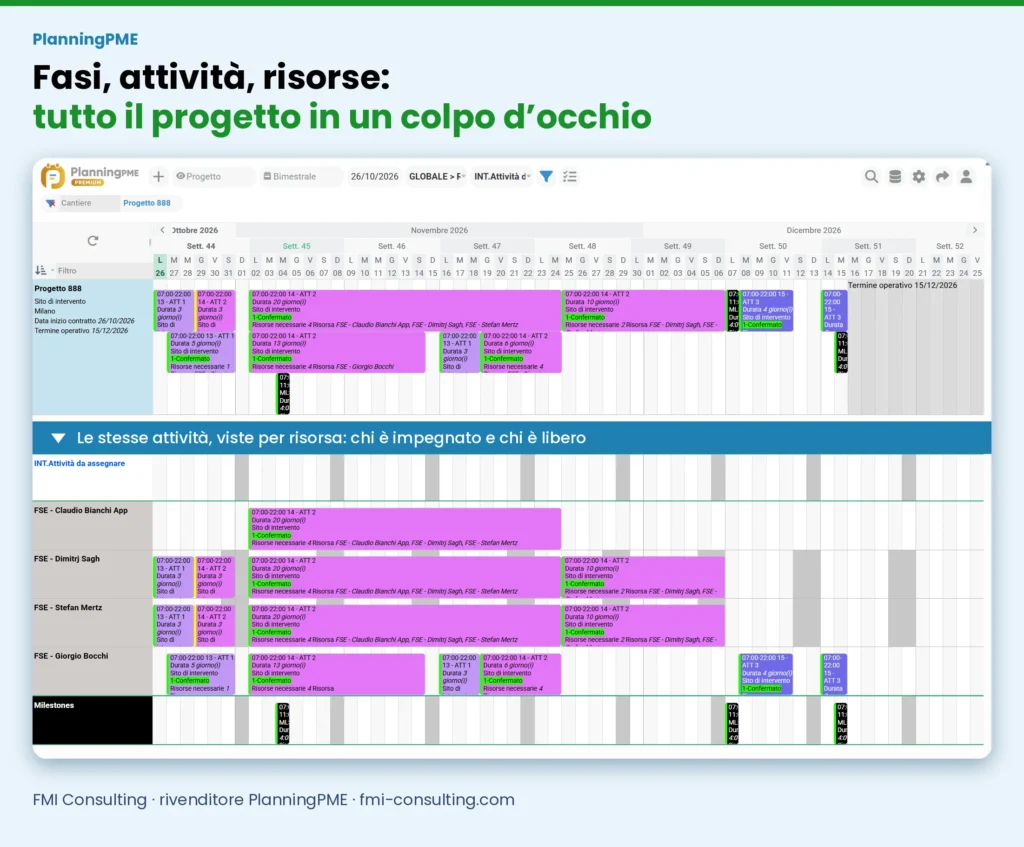
The example is a sample project in a two-month view: the same work, seen in two ways.
At the top, the project and its activities along the calendar. Each bar shows its duration, its status and how many resources it needs.
Below, the same activities shown by resource: you see who is busy and on which days, and who is free to take more work.
A dedicated row holds the activities that have no one assigned yet, so open work stays visible until someone takes it.
Phases first, people second: it keeps the plan realistic.
Set the activities of each phase with their dates, duration and the number of resources they need.
In the resource view, see who is free in that period and who already has other work.
Assign and confirm: the plan stays in the shared calendar, where everyone can see it.
A habit that helps
Check availability as you assign each activity, not once the whole project is drawn. A conflict found early is a small change; found late, it moves everything after it. If you often plan similar projects, the Gantt module of PlanningConnect can create the schedule from a template you define.
Want to try it on your own project?
Request a free trialYes. The same activities can be shown by project and by resource, so you can check who is free before you assign someone to an activity.
The approach is the same: divide the job into phases and activities, then assign resources to each one while checking their availability.
Yes. You can request a free 30-day trial of PlanningPME Web Access and plan one of your real projects.
Practical tips on planning with PlanningPME and PlanningConnect, directly on WhatsApp. No spam.
Follow the channelFollowing is optional and you can stop at any time. WhatsApp processes your data under its own privacy policy: you can find more information in our Privacy Policy.