Same people, several projects
Two projects need the same technician in the same week, and nobody sees it until the day comes.

The other half is deciding who does it, with which skills, and when
Project management tools are very good at tasks, dependencies and milestones. But when the same people are shared between several projects, the schedule holds or breaks on staffing. Here is how PlanningPME plans the people side, and how it sits next to the tools you already know.
Key takeaways
A project tool answers “what must be done, and in which order?” A resource scheduling tool answers “who can do it, with which skills, and when?” PlanningPME lets you define the sequence of a project first, without naming anyone, and then assign people by department, skill and availability, with the first free slot proposed for you. It works next to your project tool, not instead of it.
A plan can look perfect and still fail on the people side. These are the typical gaps for project managers in maintenance, industrial assembly, IT consulting and the supply and installation of complex plants.
Two projects need the same technician in the same week, and nobody sees it until the day comes.
The task needs a specific qualification, and the only person who has it is on leave or already booked.
Who does what is decided in calls and messages, and the plan slowly drifts away from reality.
At quotation or kick-off you know the sequence of tasks and how many people you need, not who they will be.
PlanningPME separates the shape of the project from the choice of people, which is how most organisations really work.
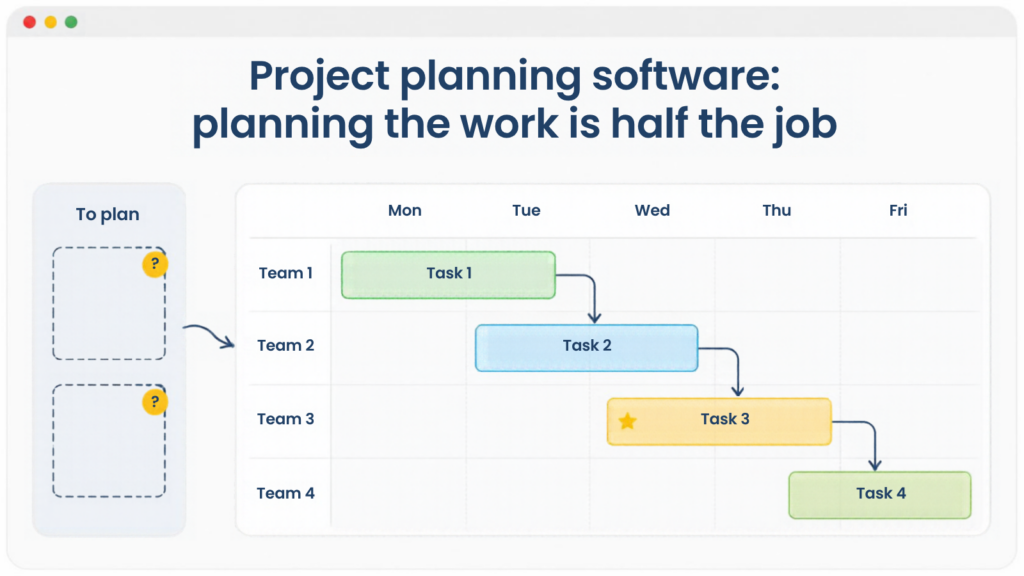
With the PlanningConnectGantt project wizardyou define the sequence of tasks, delays and contingencies, and how many resources each task needs, without naming anyone yet. The schedule is then created automatically in PlanningPME.
Tasks waiting for a name appear in the “To Plan” panel next to the schedule, in the Resource, Task, Client and Project views. Whoever has the right to assign resources drags each task onto the right person. Access rights are set per user group, so the person who builds the sequence and the people who choose the names can be different users.
Want to see a project planned in two steps?
Try PlanningPMEWhen you assign a task, PlanningPME helps with the four questions that matter.
Group resources by department and filter the schedule to show only the department you need. A project can also be assigned to one or several departments.
Assign skills to resources and to tasks. A grey hat icon appears when a resource lacks a required skill, and a skills filter shows only qualified people. Forcing an assignment asks for confirmation, and user group rights can forbid it altogether.
Tick “Available” in the resource tab to list only free people. A red icon warns you when a resource is already booked or unavailable, for example on leave.
The Scheduling Wizard panel, next to the hours, dynamically proposes the first available slot for the resources you select.
The visual alerts and the Scheduling Wizard are available from PlanningPME Web version 4.7.0.28 (July 2025). One calendar holds every project: use the Project view to follow a single project, or the Resource view to see everybody's load.
The comparison focuses on the staffing side, where the two kinds of tool differ most. What a project tool offers depends on the product and on the plan.
| Criterion | Typical project management tool | PlanningPME |
|---|---|---|
| Starting point | Tasks, dependencies and milestones | People, equipment and time slots, with projects as one of the views |
| Tasks with no name yet | Depends on the tool: some offer generic resources or roles | “To Plan” panel, and a wizard that defines the sequence and the number of resources needed |
| Matching a skill | Depends on the tool and plan: some offer skill filters | Skills on both resources and tasks, with a warning when they do not match |
| Finding the first free slot | Usually a look at the workload view | Scheduling Wizard proposes it for the selected resources |
| People shared between projects | Through portfolios, resource pools or capacity plans, depending on the product | One calendar: the tasks of every project sit on the same person's line |
| Absences and unavailability | Depends on the tool | On the same calendar, with a red alert when a resource is not available |
| Links between tasks (start to finish) | A core strength: tasks are linked and the plan recalculates | No automatic links between tasks. The Project view shows a project's tasks in sequence, a sound compromise when people are already booked on other projects: a chain of links would raise conflicts that must be solved by reassigning people anyway |
| Pricing model | Often per user | PlanningPME Web is billed per scheduled resource, with unlimited users |
The subscription is only part of the cost. The time to learn the tool, to bring colleagues on board and to keep the plan up to date counts too.
PlanningPME Web is billed per planned resource, with unlimited users, and theprice list is public. In project work a shared calendar usually covers many resources, often with several planners: the cost follows the resources you plan, not the number of people who plan or consult.
OnCapterra, users rate PlanningPME 4.7 out of 5 for ease of use, within an overall 4.6 out of 5 from 56 reviews (October 2026). Reviewers say it is understood quickly and runs in the browser with nothing to install.
How long a tool takes to learn is best measured on your own projects. The30-day free triallets you see how quickly your planners get started.
Whatever tool you consider, weigh the price together with these running costs. Prices and ratings change, so check the current price list and reviews.
Asana, Monday.com, Trello, Jira and Microsoft Project are among the most widely used project management tools. Several also cover resources, each in its own way.
Detailed schedules with Gantt charts. Resource leveling can delay tasks to remove overallocation, guided by task and project priorities, and overallocated resources are marked in red.
Workload and capacity planning show how busy people are across projects, with filters by skills, roles or teams. Workload starts from the Advanced plan, capacity planning from the Enterprise plans.
The Resource Management schedule shows allocations by person or by project, and resources can be grouped or filtered by skills.
These tools plan the work and, to varying degrees, the workload. PlanningPME starts from the other end: the calendar of people and equipment, where each project's tasks are placed. You can use it alongside your project tool: thePlanningConnect import modulereads projects, clients and tasks from CSV files.
Wherever the same people work on several projects and the schedule depends on who is available.
Technicians move between planned maintenance, urgent calls and installation projects, all drawing on the same crews.See the installation and maintenance page.
Assembly phases follow a known sequence, but the people who carry them out are shared between orders.See the industrial assembly page.
Consultants are booked on several client projects, and the skill each task needs decides who can take it.
Long projects with many phases, where the number of people each phase needs is known well before their names.
Not in the list? Browseall industries.
“PlanningPME software has given us a simple and flexible planning, it has improved the organization of our company, it has allowed us to speed up the planning process and make it accessible to more people.”
No. Project tools handle tasks, dependencies and milestones, while PlanningPME handles the people side: who is available, with which skills, and when. You can use it alongside your project tool, and thePlanningConnect import modulereads projects, clients and tasks from CSV files.
Yes. With theGantt project wizardyou define the sequence of tasks, delays and the number of resources each task needs, without naming anyone. The tasks then wait in the “To Plan” panel until someone with the right to assign resources drags them onto a person.
Skills can be assigned to both resources and tasks. A grey hat icon warns you when a resource lacks a required skill, a red icon warns you when a resource is booked or unavailable, and filters show only qualified or available people. Forcing an assignment asks for confirmation, and user group rights can forbid it altogether.
No. There are no automatic links between tasks. The Project view shows the tasks of a project in sequence, which works well when people are already booked on other projects, because a chain of links would raise conflicts that have to be solved by reassigning people anyway. If automatic recalculation of linked tasks is central to your work, a project management tool remains the right place for it.
PlanningPME Web is billed per scheduled resource, with unlimited users. The price list is public on the PlanningPME website, and the 30-day free trial lets you test it on your own projects.