Different versions of the same file
The file has to be shared and synchronized all the time, and the risk of working on an old copy or overwriting a colleague's changes is high.

From a spreadsheet to one shared calendar
Excel is the first answer anyone finds when looking for a calendar or a task planner, and for one person with stable activities it is enough. When the file passes through several hands, absences change every week and resources are shared, you need conflict control and a single calendar. Here is where the line is.
Key takeaways
Excel is a good first scheduling tool for one person and stable activities. It stops working when several people edit the same file, absences change the plan every week and people, vehicles and equipment must be assigned together. PlanningPME gives you one shared calendar that flags overlaps and unavailability, and it still exports your data to Excel.
Search for a weekly planner, a shift schedule or a project calendar and the first results are free Excel templates, from Smartsheet and Microsoft to specialist sites. Business surveys show how many companies never move past that first step.
The 94% counts any error found in the audit, including bad practices such as numbers typed into formulas. Counting only errors that produce wrong results it is 86%. The audit covers business spreadsheets in general, not only schedules.
Company size matters too. ISTAT's 2025 survey on Italian businesses shows that management software (ERP, CRM, BI) is used by about 90% of large companies, but by 52.7% of those with 10 to 49 employees.
Excel is already installed, everyone knows it and it costs nothing extra. For one person managing a few stable activities, or for a yearly calendar to print, a ready-made template does the job.
PlanningPME's own guides say the same: when you start from scratch, an Excel template is a good way to learn the basics of scheduling. The trouble starts later.
The limit arrives when the file becomes the meeting point of several people, several sites or several teams.
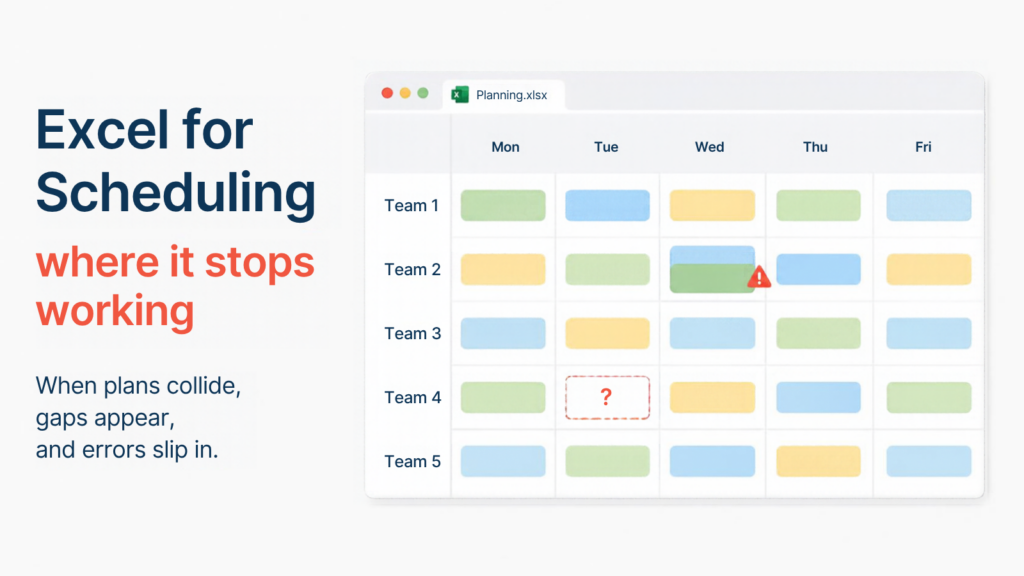
The file has to be shared and synchronized all the time, and the risk of working on an old copy or overwriting a colleague's changes is high.
Audits find errors in almost every business spreadsheet. The more people edit a file by hand, the more of them accumulate.
Excel does not warn you that the same person is booked on two sites on the same day, or that a required qualification is missing.
Holidays and sick leave must be entered, and free slots moved or reassigned manually.
Excel does not apply minimum rest periods, maximum hours or overtime rules from collective agreements by itself.
With large teams, data entry takes a long time and every last-minute change means redoing the file.
The criteria that matter most when scheduling involves more than one person.
| Criterion | Excel | PlanningPME |
|---|---|---|
| Sharing | One file to send and keep in sync; online sheets can be shared, with limited advanced features | Online calendar: every team member or manager views and updates it in real time, with different access levels for employees, and integration with Google Calendar |
| Absences and holidays | Free slots are updated and moved by hand | An absence module changes the schedule and notifies the people concerned |
| Conflicts and overlaps | No automatic warning | The schedule highlights unavailability and overlaps |
| Skills and qualifications | Hard to keep reliable | Assignment based on skills and qualifications, built into the scheduling logic |
| Vehicles and equipment | A separate document, with frequent omissions | Scheduled like people, to avoid last-minute bottlenecks |
| Working-time rules and agreements | No automatic enforcement | Constraints configurable according to collective agreements and the law in force |
| Communication with teams | Often via PDF or WhatsApp | A schedule the teams concerned can consult, with notifications and reminders |
| Hours worked and overtime | Formulas to build and maintain | Statistics on hours worked and overtime, exportable to Excel |
| Cost | Included if you already have the licence | Subscription, to weigh against the time saved on updates |
Want to see it with your own schedule?
Try PlanningPMEMoving to PlanningPME does not mean giving up Excel. It stays the tool for reports, printouts and custom analysis, while the shared calendar is where data is entered once.
PlanningPME exports data to Excel, also as a pivot table, and fills ready-made planning templates with the information already in the calendar.
Included templates, available from PlanningPME version 4.4.1:
If you recognize at least two of these, try PlanningPME with a real week of your schedule and compare the time it takes to keep each one up to date.
Or copies with different names are circulating.
Sites, job sites or crews that need one shared view.
Holidays, sick leave and training keep changing who is available.
They have to be assigned together with the people.
The planner spends more time keeping the file up to date than planning.
“PlanningPME software has given us a simple and flexible planning, it has improved the organization of our company, it has allowed us to speed up the planning process and make it accessible to more people.”
For one person with a few stable activities, yes. When several people edit the file, absences change the plan every week and people, vehicles and equipment are shared, Excel does not flag conflicts, does not manage absences and is hard to keep up to date.
No. PlanningPME exports data to Excel, also as a pivot table, and fills ready-made Excel templates with the information in the calendar: hours per employee, hours per customer, absence summaries and printable monthly plannings.
Employee and resource lists can be imported or entered directly in PlanningPME. For larger sets of clients, projects and tasks, thePlanningConnect import modulereads CSV files with your own table structure. Our consultants can help you plan the first migration.
PlanningPME is accessed from a browser and has a visual interface that needs no technical training, so teams can start scheduling within days. Our support team guides you through the initial setup.
Constraints can be configured according to collective agreements and the law in force. Rules differ by country and contract, so check the details for your case with a consultant.